Cloaking.House Guide: Where to Start for a Beginner
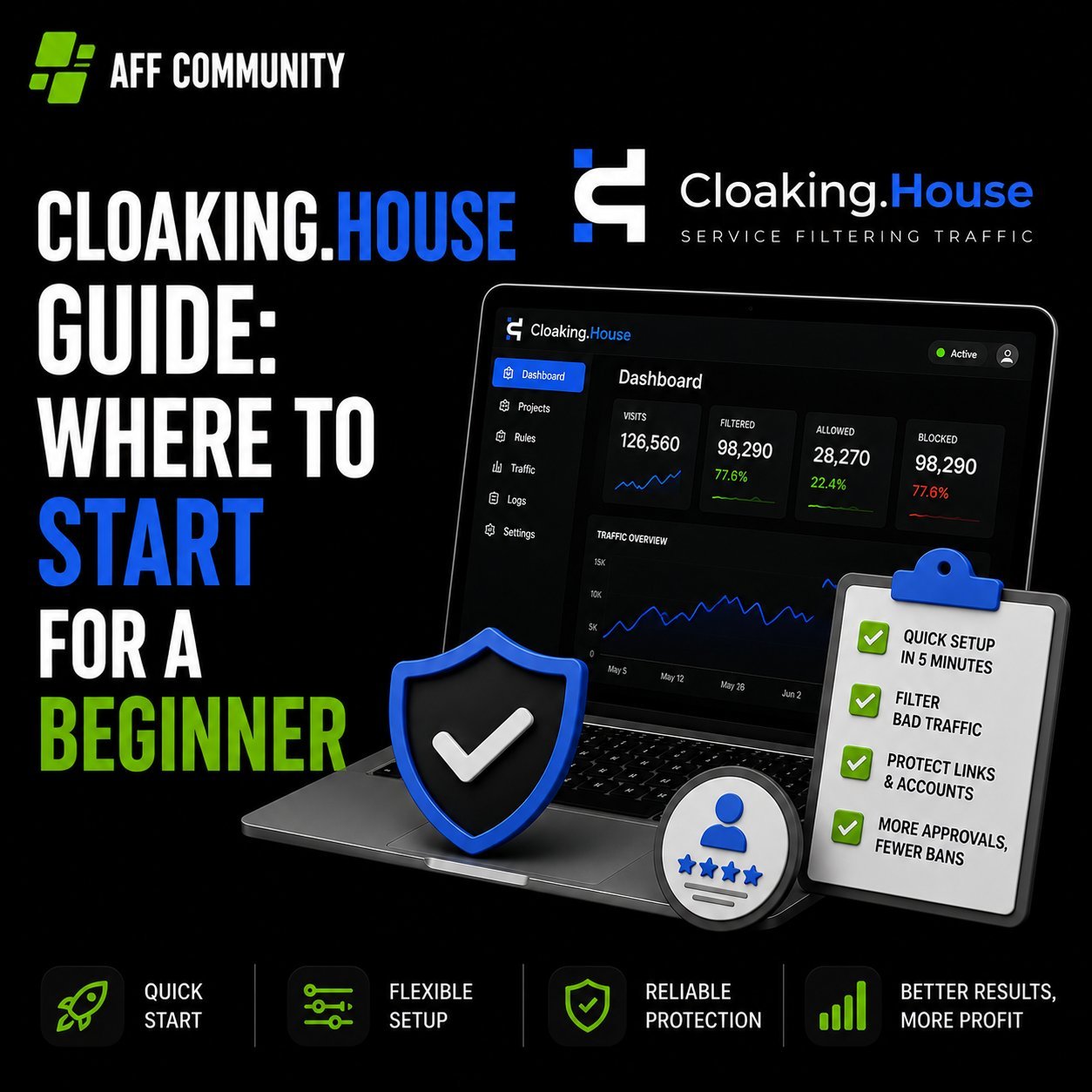
When you first get into cloaking, the most common roadblock isn't "what is this even," but "which button do I start with." Instructions in the spirit of "registered – configured – launched" usually don't exist, and you have to figure it out by trial and error, losing the first days (and sometimes the first banned accounts) on experiments.
Let's break down the entire journey using Cloaking.House as an example: what this service is, what you'll need to launch, how to generate a White Page, create a flow, integrate it onto your hosting, and get your first filtered click.
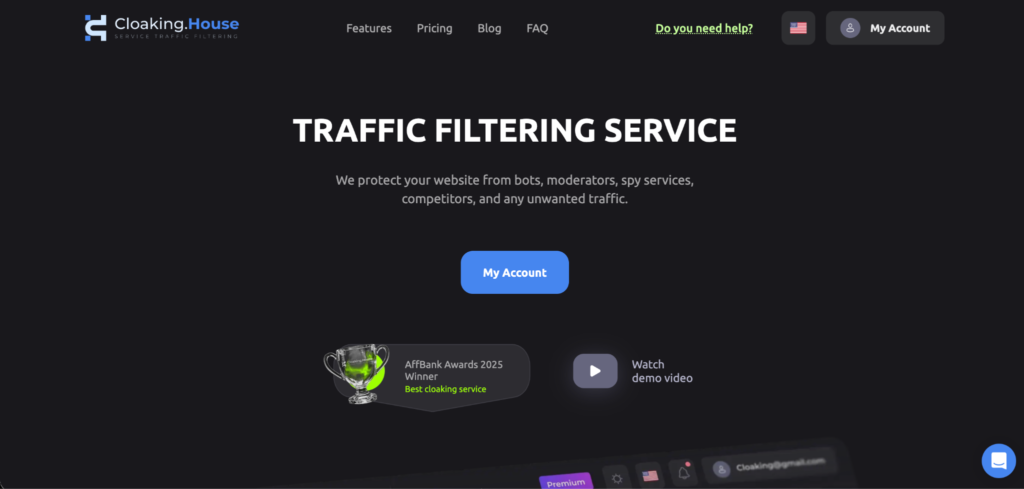
What is Cloaking.House and What is it For
Cloaking.House – is a service that splits incoming traffic into two streams using the same link:


- a real user from the target geo lands on the Offer Page – a page with the real offer;
- a moderator, bot, scam detector, or competitor sees the White Page – a safe page that easily passes moderation.
The service decides which page to show based on a combination of parameters: IP and its reputation, VPN/Proxy/datacenter, ISP, geo, language, time zone, device, OS, browser, referrer.
It is suitable for those who run "grey" verticals through Facebook, Google, TikTok, and other platforms with strict moderation – gambling, betting, nutra, dating, crypto. Cloaking is also used for white verticals – as protection against bots and spy services.
What You'll Need to Launch
Before opening your personal account, it's worth preparing a set of four things:
- Domain. Your own (preferably with history) or one bought/parked directly in the service.
- Hosting with PHP support, if you plan to integrate via your own domain rather than through the service's ready-made link.
- White Page – the "white" version of the site that the moderator will see.
- Offer Page – the link to the offer itself: either an external affiliate link or a file on the same hosting.
Step 1. Assembling the White Page
A White Page is not a formality for show, but a working page that must look plausible and actually open. There are basic requirements for it:
- the page should be thematically close to what is being advertised (in terms of headers and content);
- load quickly and display correctly on mobile – this is the first thing platform algorithms check;
- have standard sections at the bottom of the site – Privacy Policy, Terms, contacts;
- be unique: a site copied from someone else that has already appeared in ads or indices is a bad idea; platforms recognize such copies.
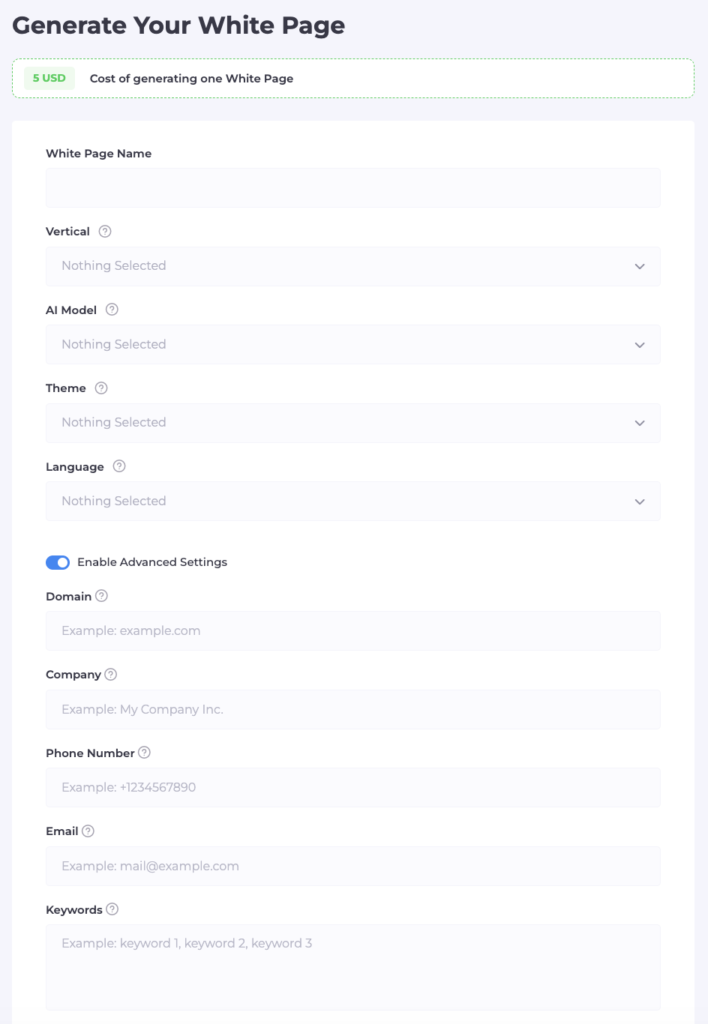
Assembling such a page from scratch by hand takes time. Therefore, Cloaking.House has a built-in AI White Page Generator: you specify the project name, vertical (e.g., Nutra, Gambling, Technology), site format (one-pager, option for apps, or multi-page option for ad campaigns), visual theme, and language for the required geo. In advanced settings, you can immediately enter the domain, company name, phone, email, and keywords on the topic – the generator will place them in headers and the footer itself to make the page look "alive."
After generation, the service provides a ready archive with the page files.
Step 2. Uploading the White Page to Hosting
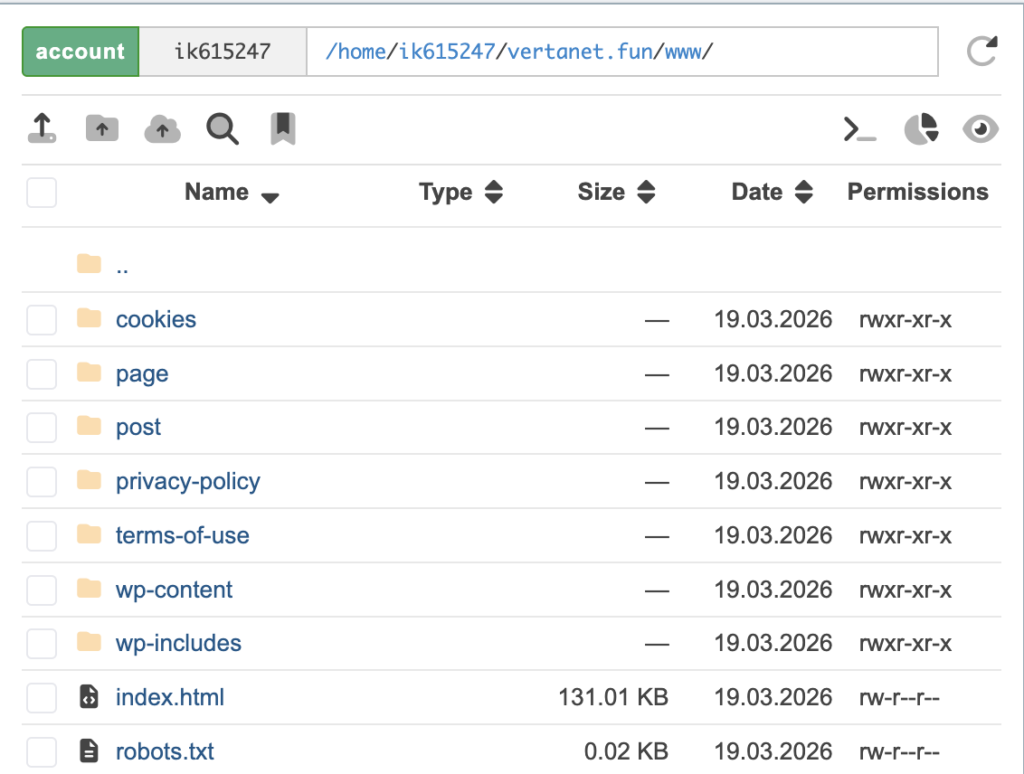
If you work through your own domain and hosting, the archive needs to be uploaded to the hosting:
- Log in to the hosting control panel and open the file manager.
- Go to the root folder of the domain (usually public_html).
- Upload the archive with the White Page there and extract it.
- Delete the archive itself so it doesn't take up space – the site files are already deployed in the folder.
Next, the main domain is formally ready and opens as a regular "white" site.
Step 3. Creating a Flow
A flow is a connection of "filtering rules → White Page → Offer Page," the main working unit of the service. It's created in three steps.
Name and paths. Set a name for the flow (better with the offer and geo in the title right away to avoid confusion when scaling), then specify:
- White Page – the file name with the extension (e.g., site.html or site.php) and the display method. The method where the address in the browser doesn't change is the most discreet option for moderation.
- Offer Page – the path to the real offer. If the offer is an external affiliate link, redirect is chosen; if the file is on the same hosting – the same display method without changing the address.
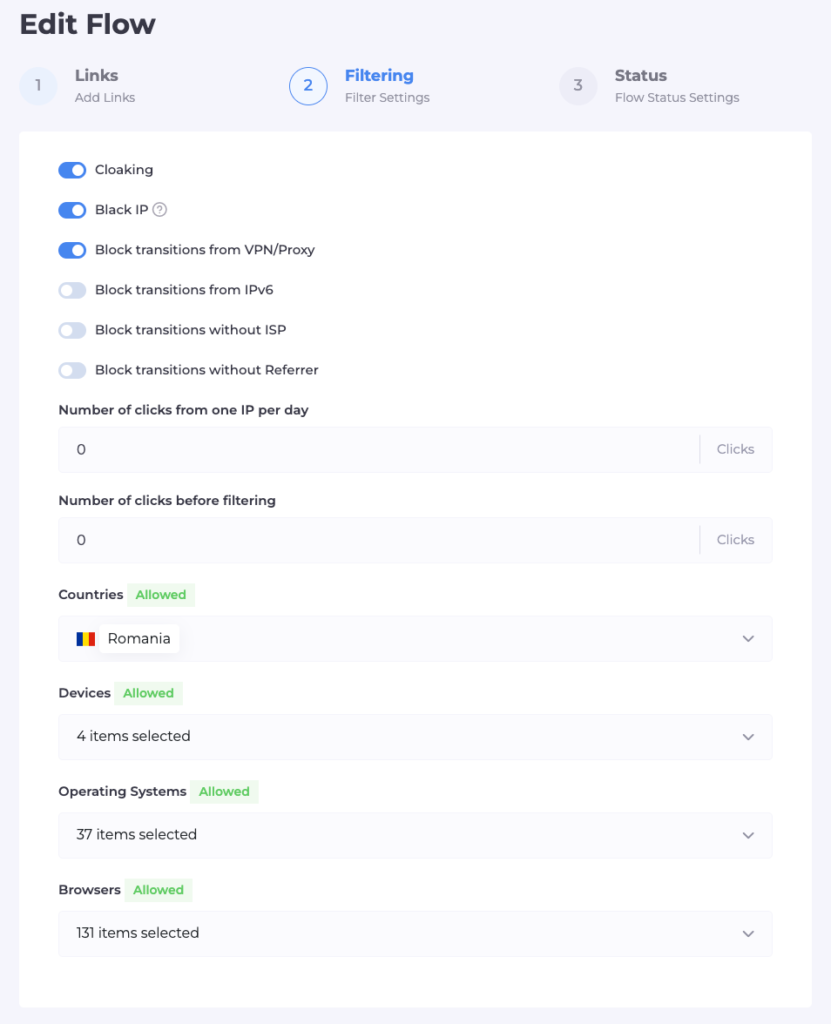
Filters. This is where the traffic splitting logic is configured:
- database of known moderators and bots (Cloaking and Black IP) – usually enabled by default;
- blocking VPN/Proxy/datacenters – cuts off connections that are not from regular providers;
- IPv6 filter – it's important not to overdo it: part of the checks of ad platforms and search bots go through IPv6, and if you block the protocol entirely, even a necessary check won't be able to get through, which will more likely harm passing moderation;
- blocking visits without a specific ISP – this filters out entries from servers and datacenters;
- geo, language, time zone – traffic not from the target region or with a non-matching language goes to the White Page;
- devices, OS, browsers – you can leave only the necessary types (e.g., only mobile Android);
- your own blacklists of IPs, if any have already been accumulated.
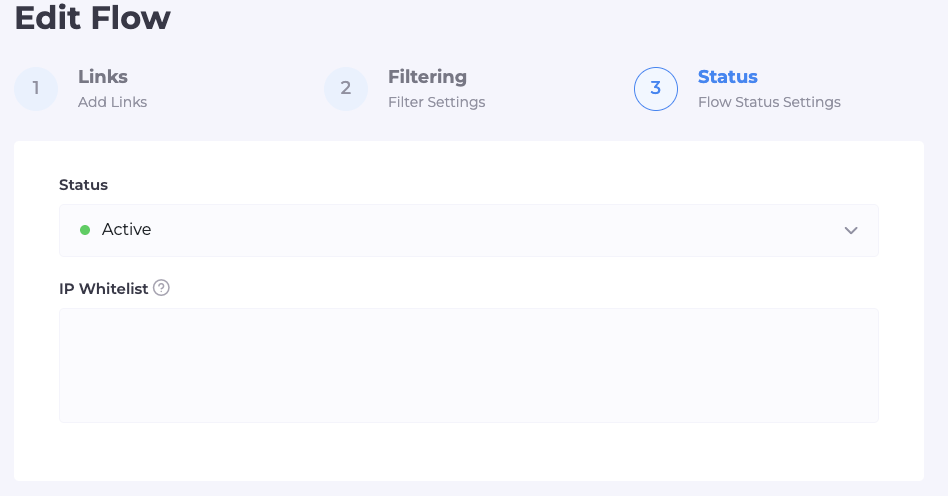
Status and check. The flow can be left on pause – then everyone will see it, including you – or switched to active mode. In a separate White List field, you specify your own IP: this allows you to bypass all filters and see exactly the Offer Page, while the White Page works for everyone else.
Step 4. Integration on Hosting
Once the White Page is in place and the flow is configured, all that remains is to link them technically:
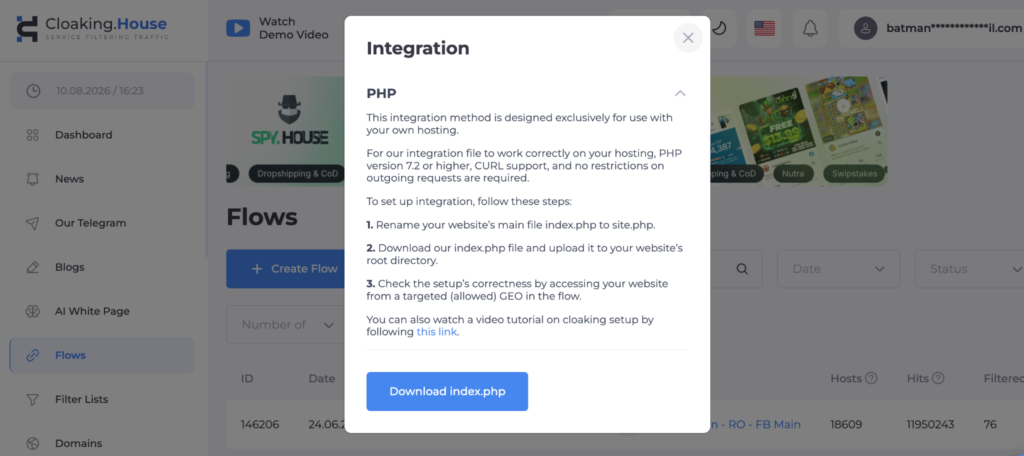
- In the "Flows" tab, download the integration file (index.php).
- Upload it via the hosting file manager to the root folder of the domain – to the same place where the White Page was previously extracted.
- Rename the current main site file (usually index.html) to the name specified in the White Page field when creating the flow – for example, to site.html.
- After renaming, it is index.php that becomes the entry point: it will decide whether to show the White Page or the Offer Page.
- Switch the flow status from "Pause" to "Active" and check through your IP from the White List that the Offer Page actually opens for you, and the White Page for everyone else.
If you work through a domain bought or parked directly in the service rather than your own hosting, this step isn't needed at all – instead of file integration, the service immediately provides a ready "Cloaked link" that can be inserted into the ad cabinet without any fuss with files.
Step 5. First Click and What's Next
From the moment of activation, every transition via your link automatically passes through filters. It's convenient to track the result in the click statistics tab inside your personal account:
- clicks with Cloaking status – these are bots, moderators, or traffic that didn't pass the filters (if there are many from one city or network, it's likely a check from the platform, and that's normal, meaning the protection is working);
- clicks with Client status – real users whom the flow allowed through to the Offer Page.
If this statistic shows that the target audience is also landing on the White Page, it's worth looking into the reason for the filter triggering for a specific click – perhaps some rule (e.g., by IPv6 or ISP) is configured too strictly for your geo and should be relaxed.
Launch Checklist
- Prepared domain and hosting (or chose a domain inside the service)
- Generated or uploaded a White Page
- Uploaded the White Page to hosting and extracted the archive
- Created a flow: specified White Page, Offer Page, and their display method
- Configured filters – VPN/Proxy, IPv6, ISP, geo, devices, language
- Added your IP to the White List and checked that the Offer Page opens
- Uploaded the integration file and renamed the original site file
- Switched the flow to Active status
- Checked click statistics after the first transitions
Who is it for and How Much Does it Cost
The service is designed for both a beginner launching their first flow and teams needing an API to manage domains and flows from their projects. Plans start from $49 per month (cheaper with annual payment), and there is 7 days of free access without limits – this is usually enough to run a real campaign through a flow and understand if the connection fits your traffic before paying. Also, specifically for readers, a promo code that gives a 30% discount: AFFCOMMUNITY
Summary
Broken down by steps, cloaking stops being black magic: White Page → upload to hosting → flow with filters → integration → check via White List → first click. The main fork that determines how much time launch will take is a warmed-up domain with file integration or a ready-made domain and link inside the service without hosting hassle. For the first flow, it's easier and faster to go the second way, and return to your own hosting and finer filter settings already with an understanding of how each setting reacts to your traffic.